Version Control with GIT
This document provides a practical overview for data science teams implementing Git and GitLab for software project management. It emphasizes the role of version control as a critical safeguard, enabling collaborative development through branching. The guide details essential concepts such as branching, which promotes independent development of features.
Furthermore, it explains the lifecycle of a merge request, highlighting the capabilities of GitLab in facilitating code review and maintaining stable release processes. The text also outlines practical commands and integrates these tools to ensure traceability and project stability throughout the entire development process.
Listen to the introduction:
Resources:
- Pro Git book, a free e-book.
- [https://git-scm.com/install/] Install git on Windows, macOS, or Linux
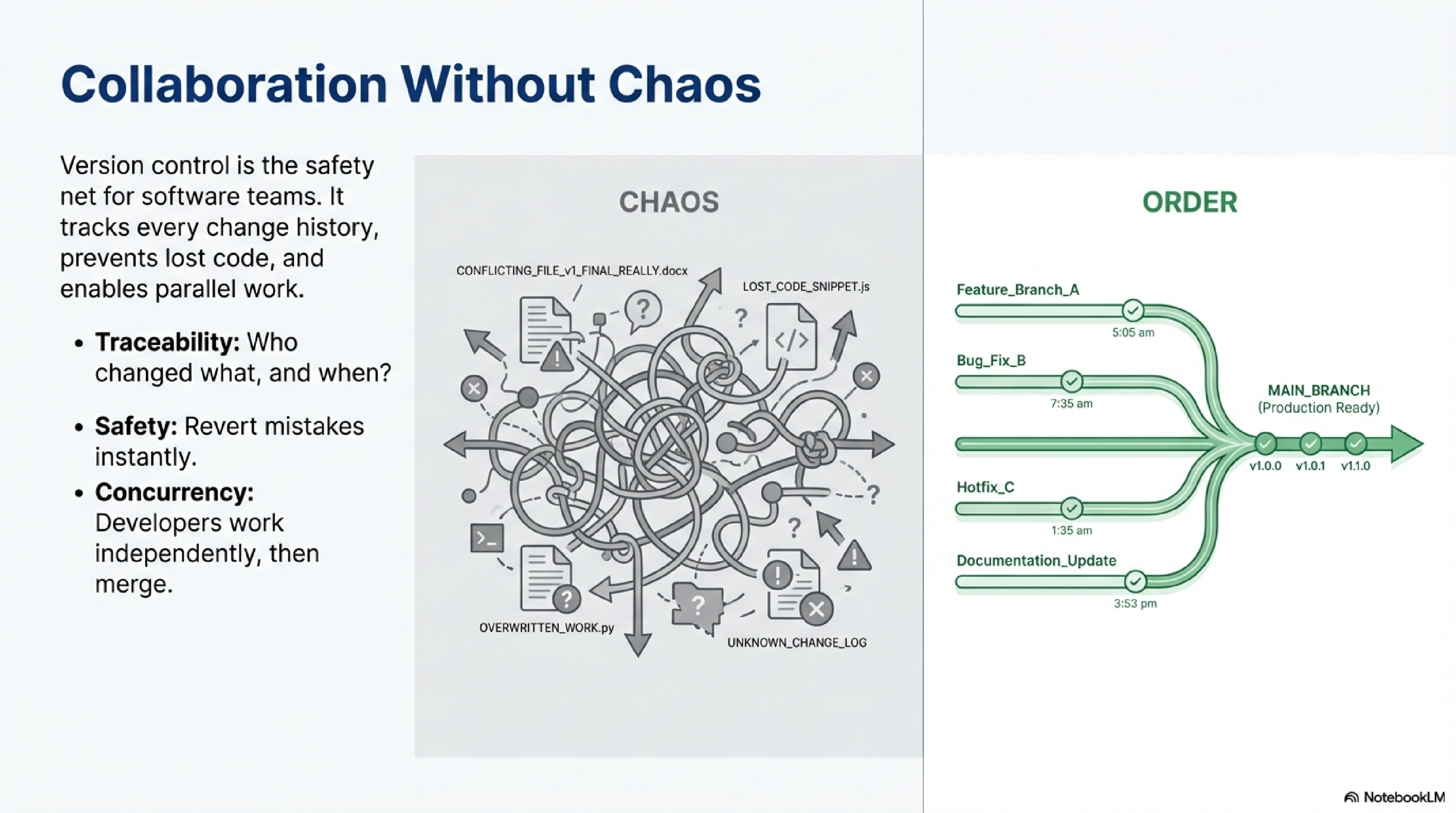
If you’re building software with a team, version control is your safety net. It keeps track of every change, prevents lost code, and enables collaboration without chaos. Git is the most widely used version control system today — it allows developers to work independently, merge their contributions, and manage releases in a structured way.
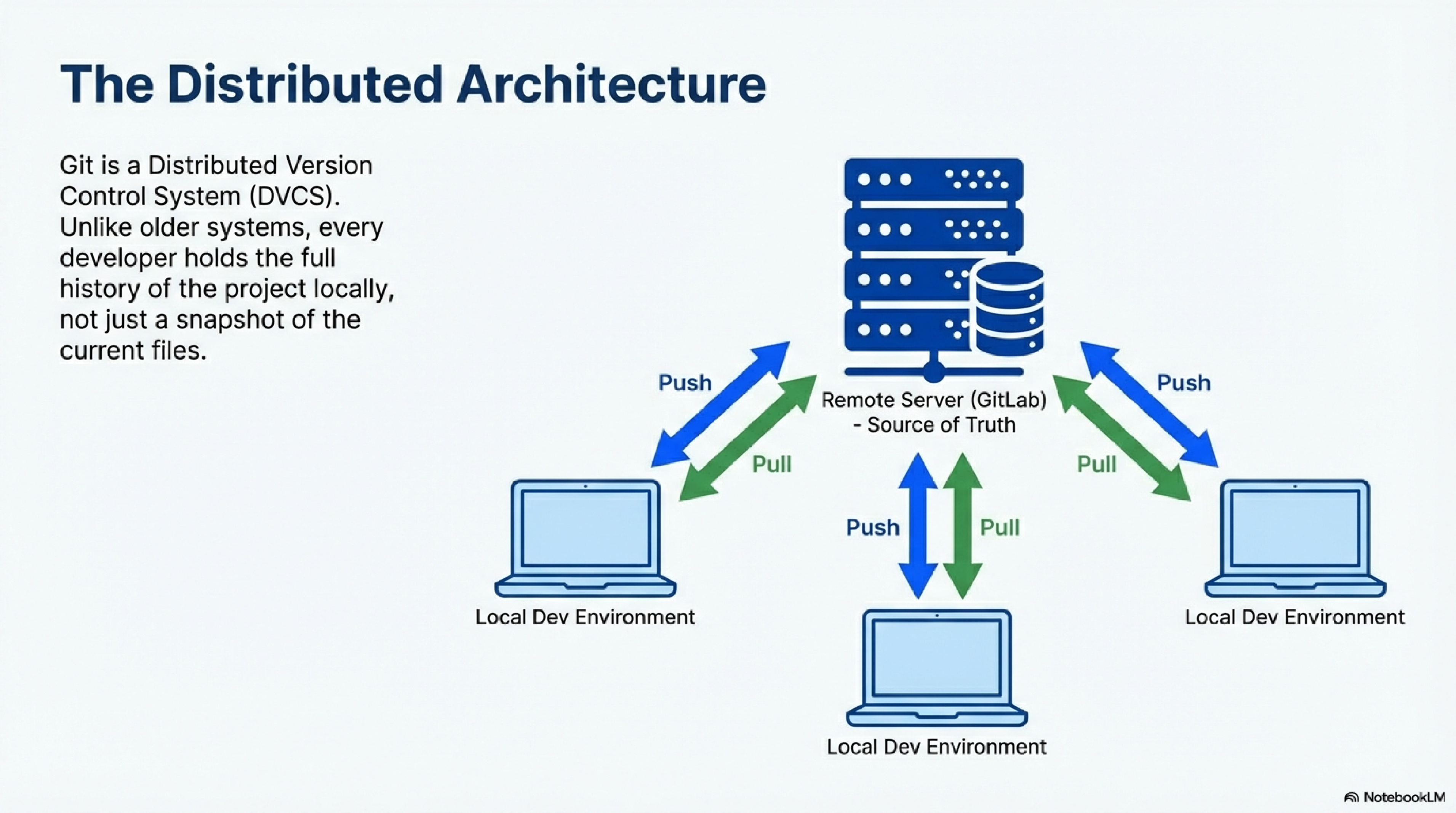
At its core, Git is a distributed version control system. This means every developer has a full copy of the code repository, including its entire history. Changes are made locally before being synchronized with a central remote server (like GitLab or GitHub).
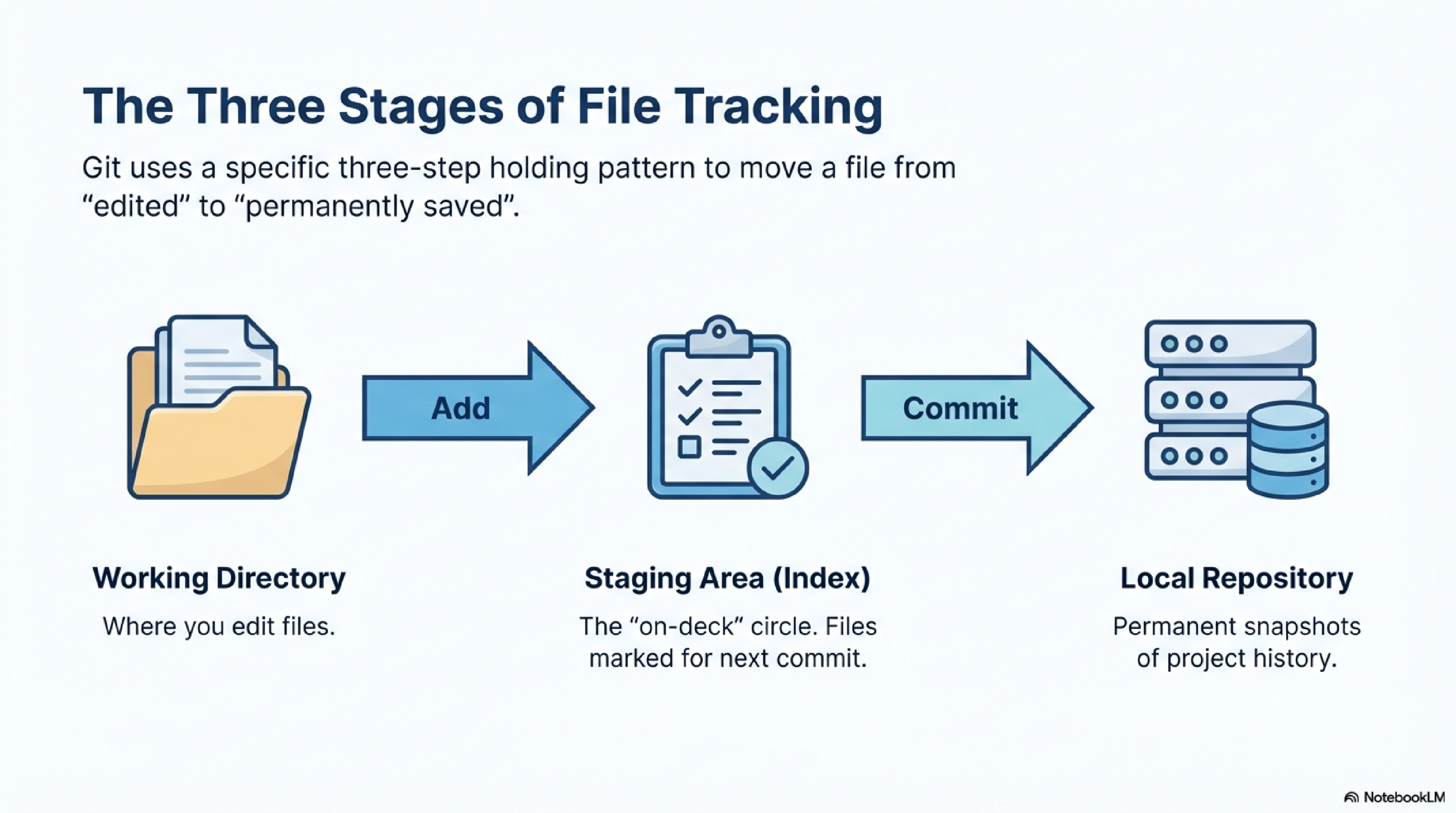
The basic Git workflow involves three stages:
- Working Directory – Where you edit files.
- Staging Area (Index) – Where you mark files you want to include in your next commit.
- Repository (Local Repo) – Where your commits are stored permanently as snapshots of your project.
Once your local repository contains commits, you can push them to a remote Git server so your teammates can see and integrate your work.
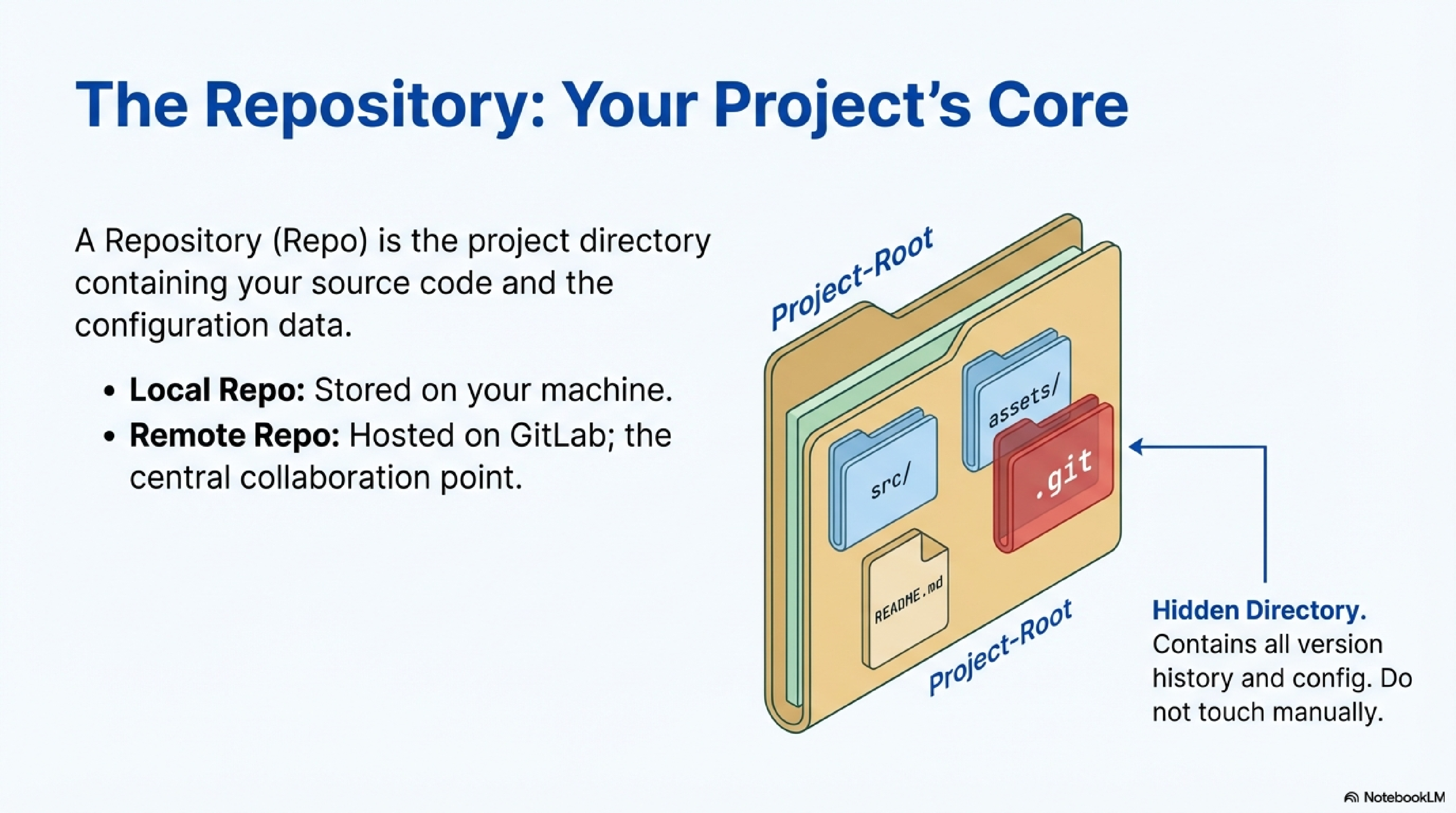
A repository (repo) is the core concept in Git — it’s a project directory that stores your source code along with a hidden .git folder containing all version history and configuration data. Repositories can be either:
- Local repositories, stored on your own machine.
- Remote repositories, hosted on platforms like GitLab, where they act as the central source of truth for the team.
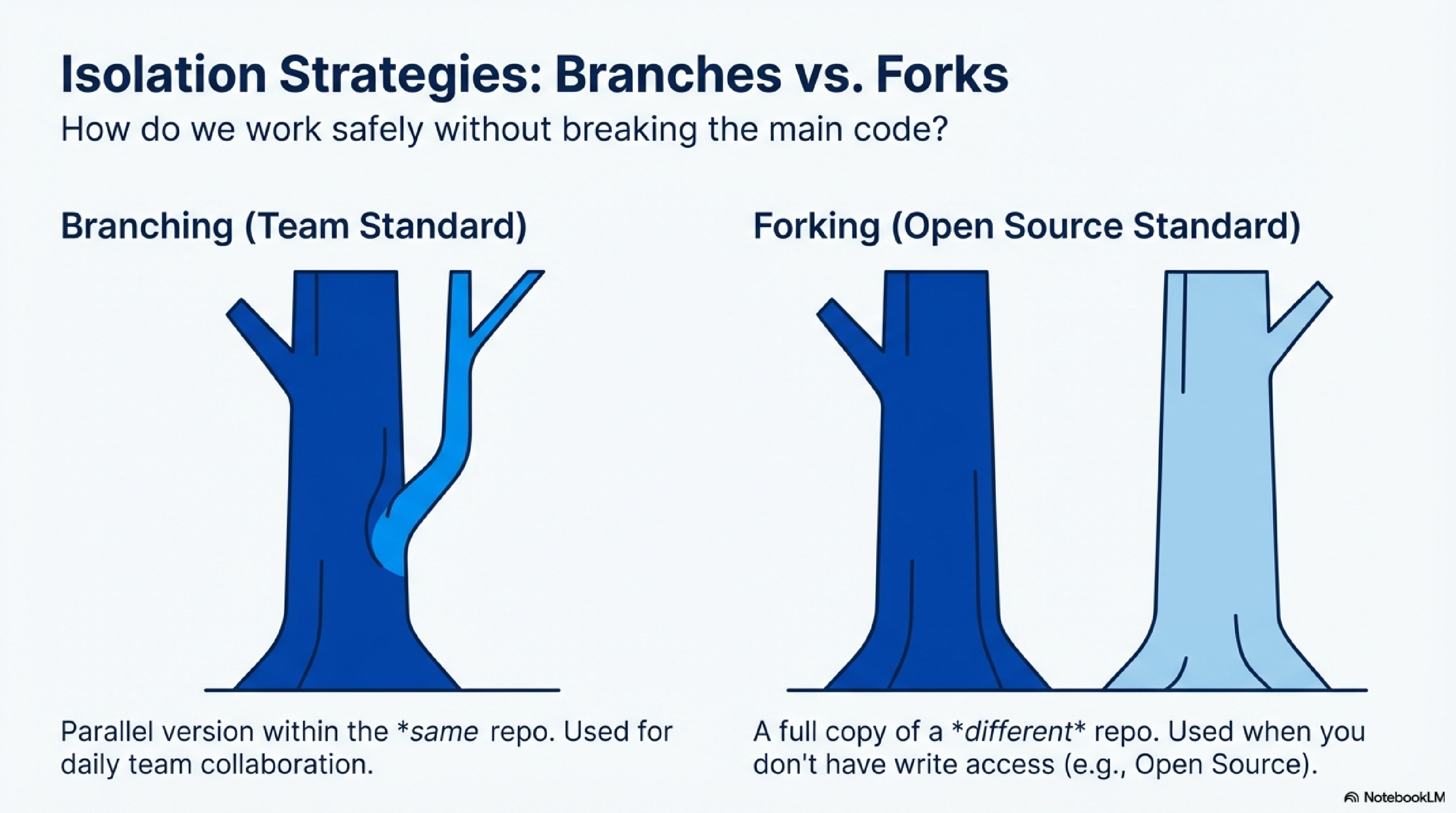
Branches and forks help developers work on separate versions of code:
- Branch – A lightweight, parallel version of the same repository. When you create a branch (e.g.,
feature-login), you can develop and commit changes without affecting the main branch. - Fork – A full copy of another repository, usually used when contributing to a project you don’t have write access to. It’s more common in open-source workflows than within small teams.
Most teams primarily use branching for daily collaboration.
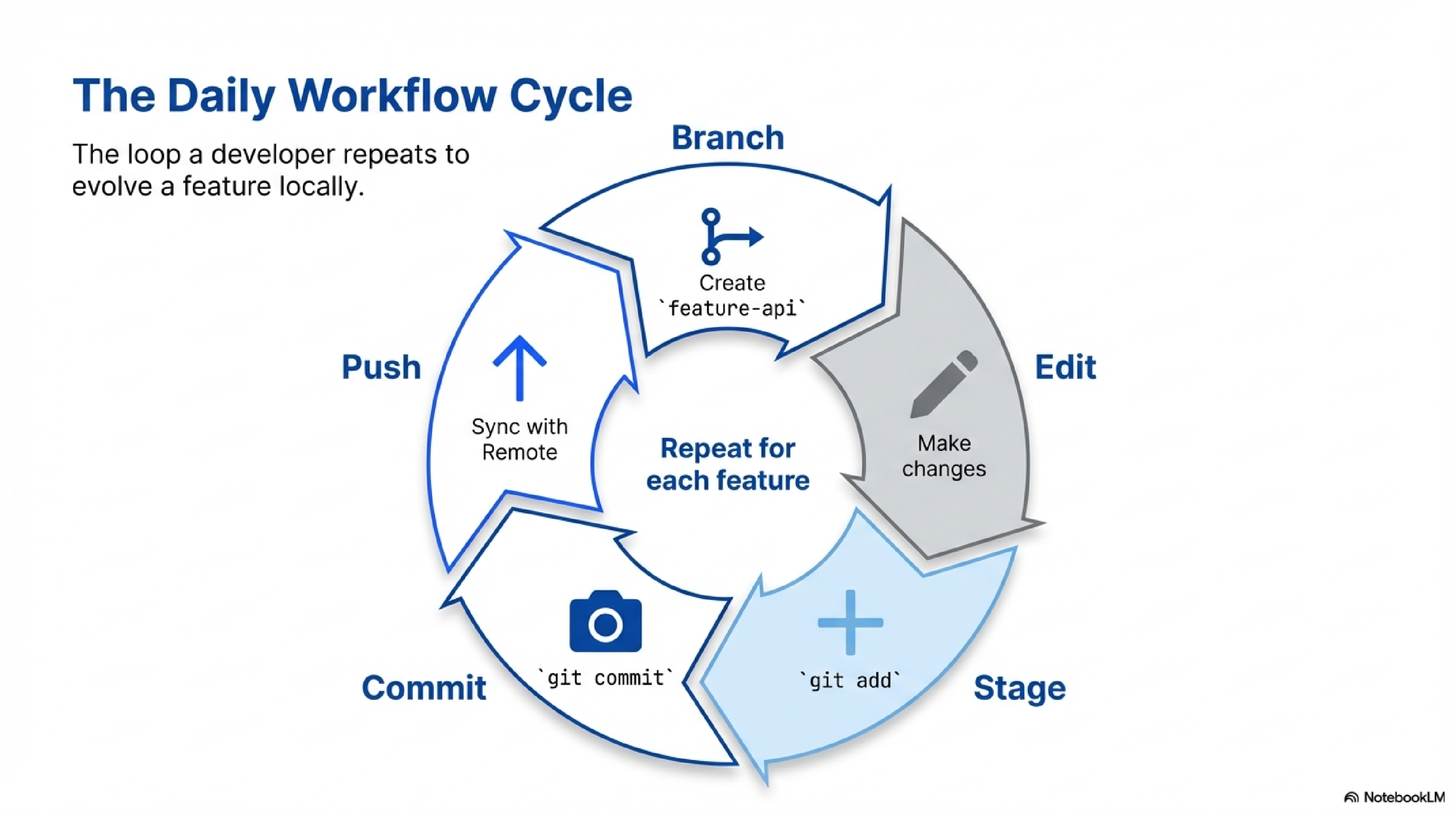
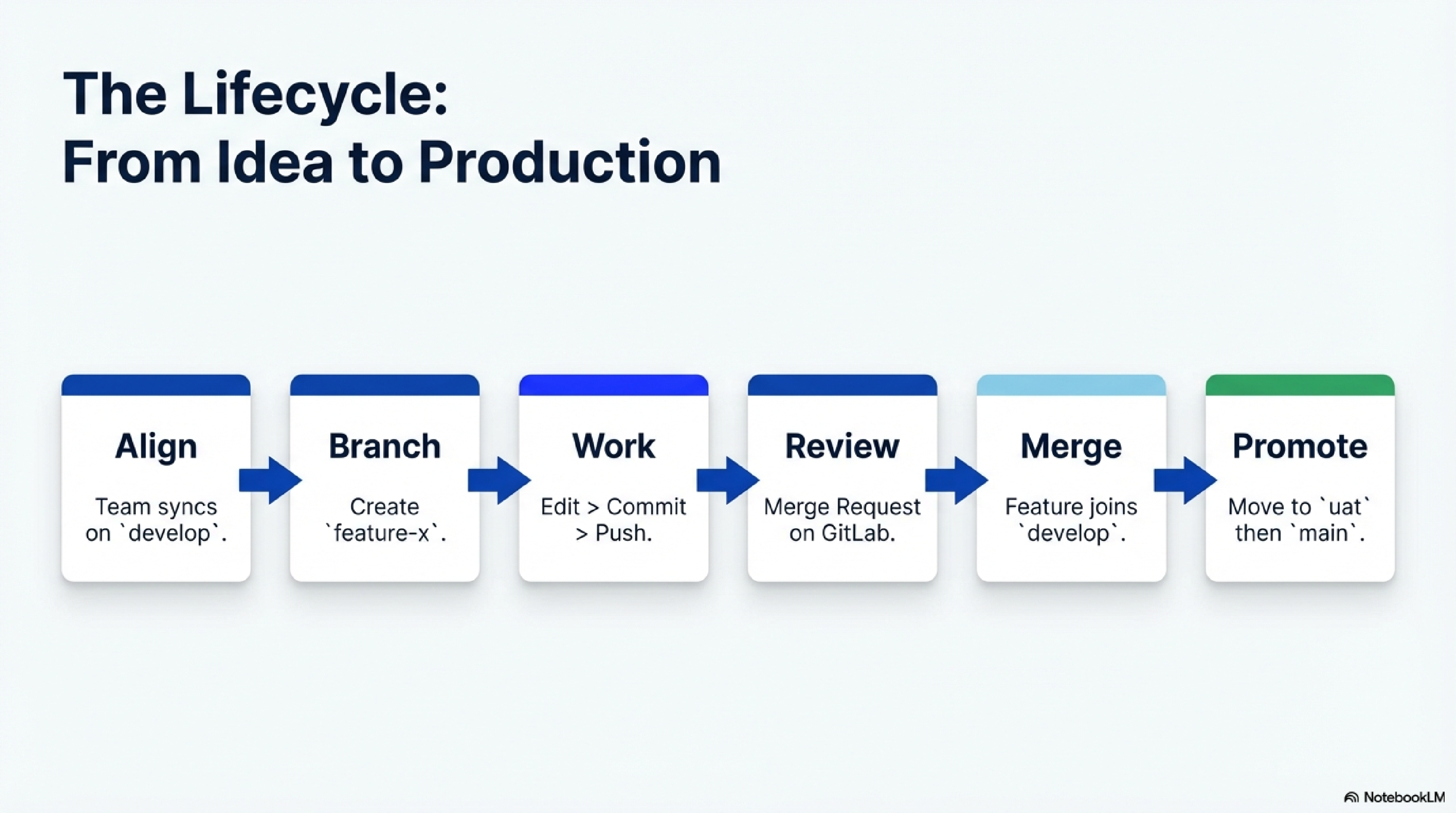
GitLab acts as your shared Git server and collaboration platform. A typical team workflow looks like this:
- The team agrees on a shared branch — often named
develop— as the integration branch or current source of truth. - Each developer creates a personal branch from
develop, e.g.,feature-api-endpoint. - They make changes locally, using cycles of add → commit → push to evolve their branch.
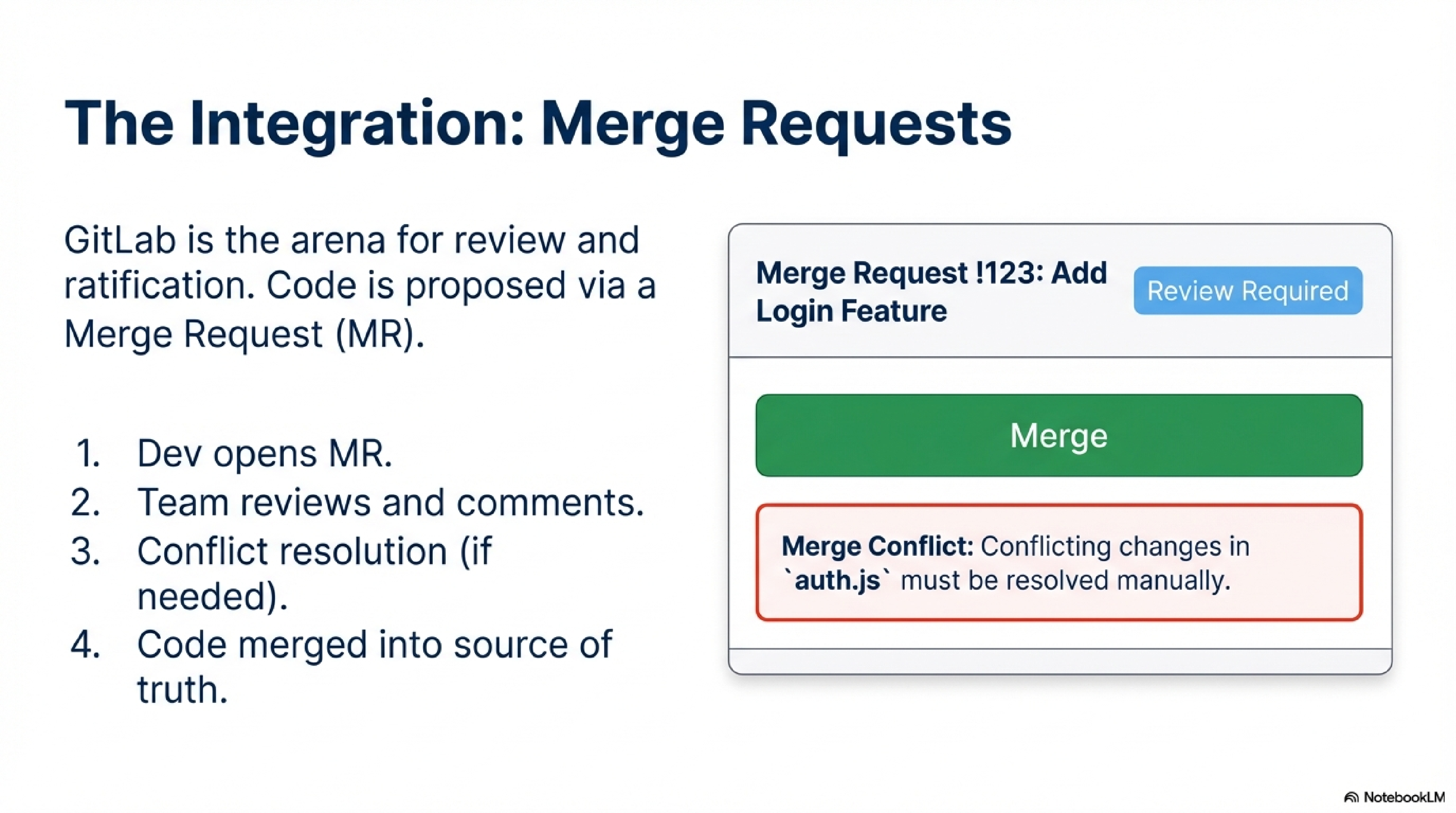
- Once ready and tested, the developer creates a merge request (or “pull request”) in GitLab to incorporate their work into
develop. - GitLab allows teammates to review, comment on, and approve merge requests.
- If there are conflicting changes, Git signals a merge conflict, which must be resolved manually before merging.
- Once merged, each developer starts a new private branch for the next feature.
This branching strategy keeps the develop branch clean and stable while enabling fast parallel work across the team.
Teams often use multiple long-lived branches to manage different project stages:
develop– The main working branch for new features.uat(User Acceptance Testing) – Created fromdevelopwhen the team wants a stable snapshot for testing or client review.main– Represents the official production-ready version.
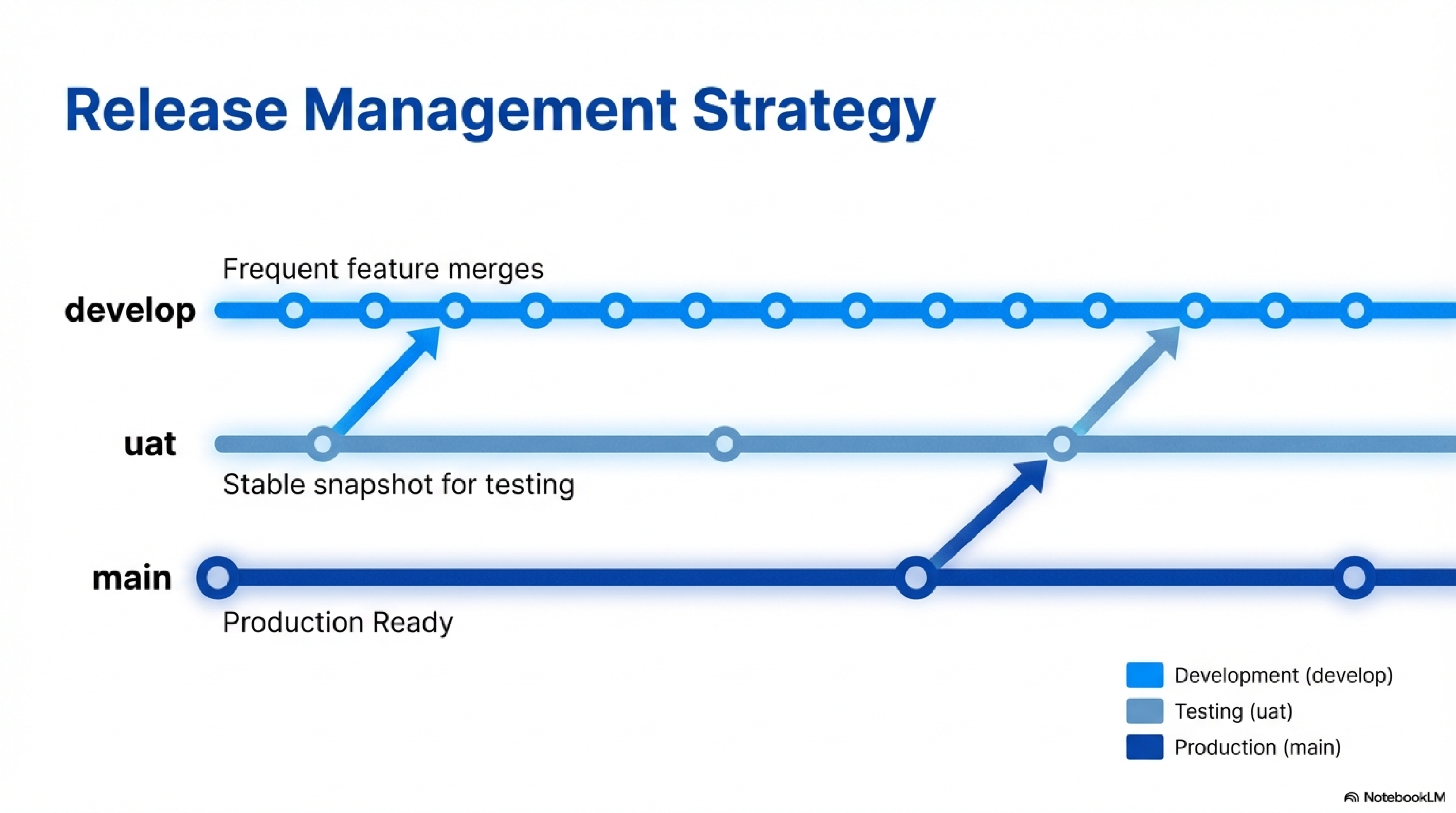
- When
developreaches a reviewable state, it’s merged intouat. - The
uatbranch is deployed or tested externally while development continues ondevelop. - Once approved,
uatmerges intomain, marking the official release version.
This approach ensures that stable and in-progress versions of your project can coexist safely.
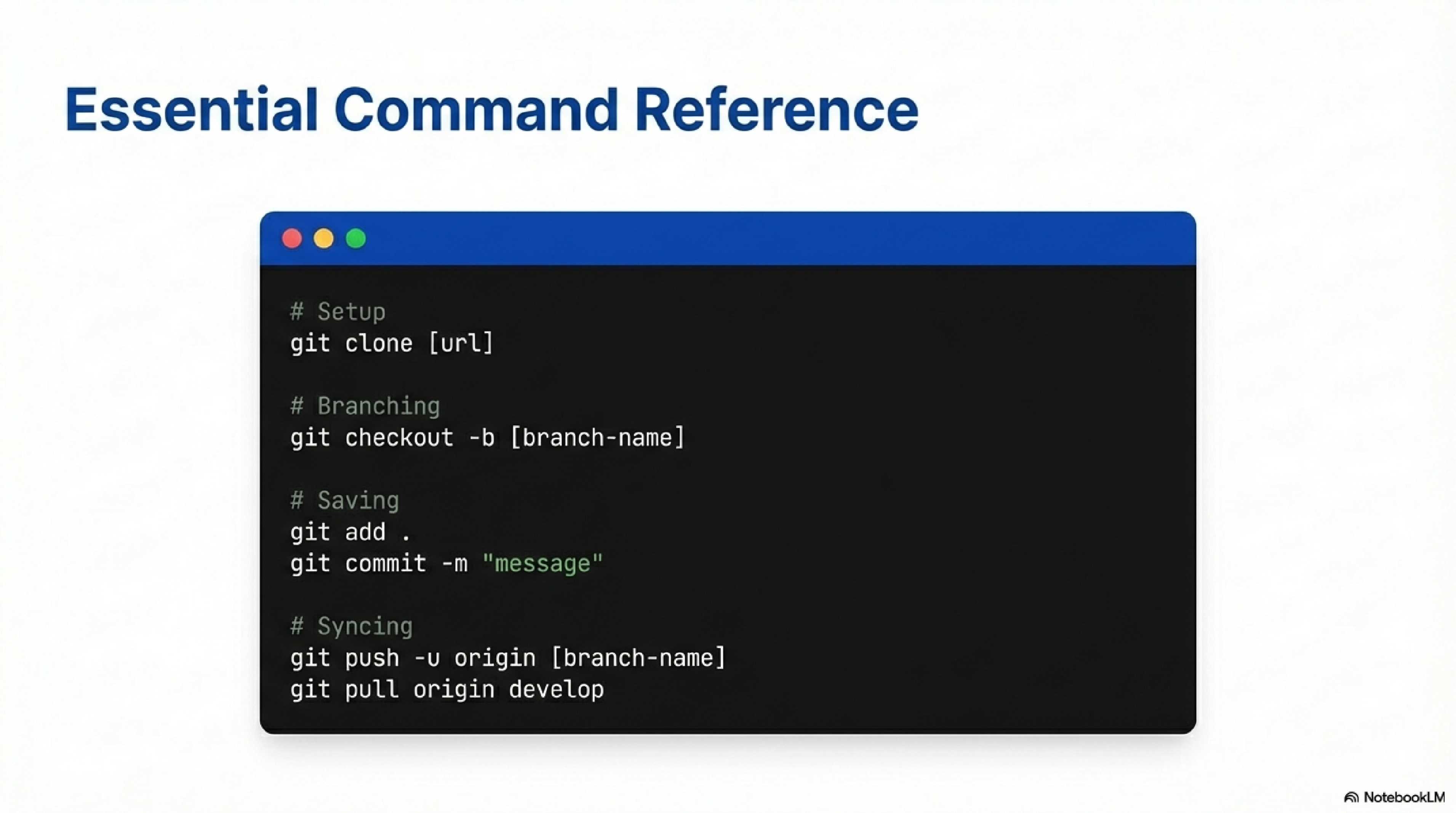
Here’s a quick command-line guide for daily Git usage:
# Clone a repository (via SSH)
git clone git@git.insight.gsu.edu/yourteam/yourrepo.git

# Create and switch to a branch
git checkout -b feature-login

# Stage modified files
git add .

# Commit changes locally
git commit -m "Implement login functionality"

# Push your branch to remote
git push -u origin feature-login

# Update your local repo from the remote develop branch
git checkout develop
git pull origin develop

# After merge approval, merge changes locally (if needed)
git merge feature-login
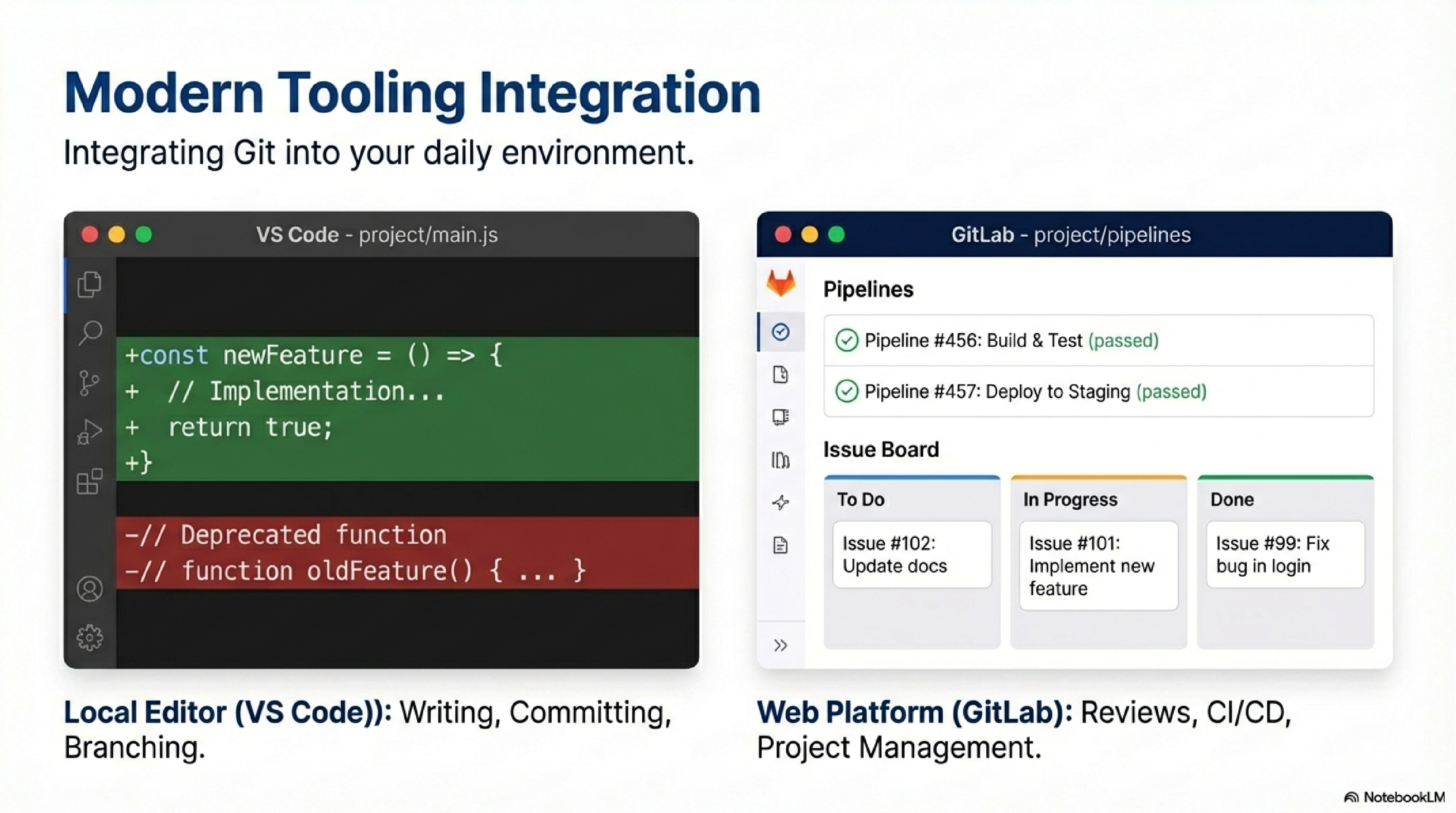
Most modern tools integrate Git directly:
- VS Code and JupyterLab let you view diffs, commit changes, and manage branches through intuitive interfaces.
- However, the GitLab web interface excels in visualizing merge requests, reviewing changes, tracking issues, and managing CI/CD pipelines. It’s where collaboration and decision-making happen.
Git isn’t just about code history — it’s a shared language of collaboration. From solo projects to large-scale enterprise systems, Git with GitLab provides structure, traceability, and confidence that your team’s code evolves safely and coherently.